 AdBlockTube
How to block YouTube ads on iPhone
Watch YouTube inside AdBlockTube. Video ads, banners and trackers are blocked before they load, and sponsor segments are skipped.
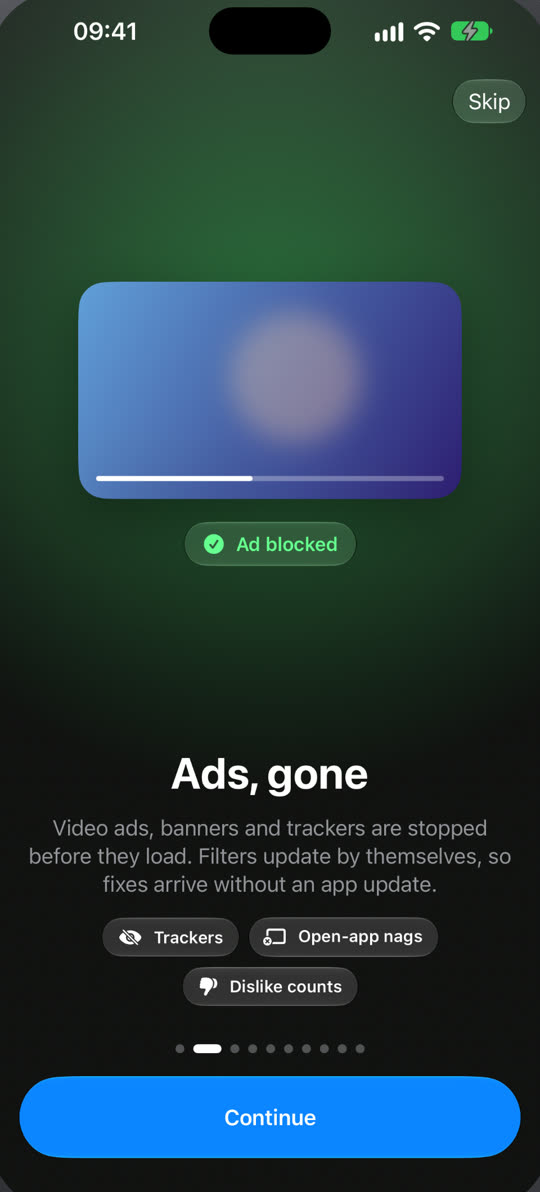
Steps
- Install AdBlockTube and open it. Blocking is on from the first launch, with nothing to configure.
- Open YouTube from Home and sign in if you want your subscriptions. Signing in is optional.
- Play anything. In-video ads, banner ads and the “Open in app” pop-up do not appear.
- Sponsor reads inside videos are skipped, on by default. Turn it off or choose which segment types to skip in Settings.
What gets blocked
- Video ads before and during a video, removed by our own scripts for YouTube’s player
- Banners and promoted results on Home, search and the watch page
- Trackers from EasyList and EasyPrivacy, turned into iOS content blockers
- Sponsor segments inside videos
- Nags like “Open in app” banners
Why Safari content blockers miss YouTube ads
Safari content blockers can block requests and hide page elements, but YouTube serves video ads from the same addresses as the videos themselves. Blocking those would block the video too. AdBlockTube runs its own player scripts on YouTube’s pages, which content blockers cannot do, so the ad is skipped and the video plays.
When YouTube changes something
YouTube changes its pages often. AdBlockTube’s filters, site scripts and layouts are delivered over the air as a signed bundle that your iPhone verifies before using. When a fix is published, it reaches the app without an App Store update.
Ad blocking stays free. AdBlockTube shows one small banner of its own in the free version. Pro removes it.