 AdBlockTube
How to play YouTube in the background on iPhone
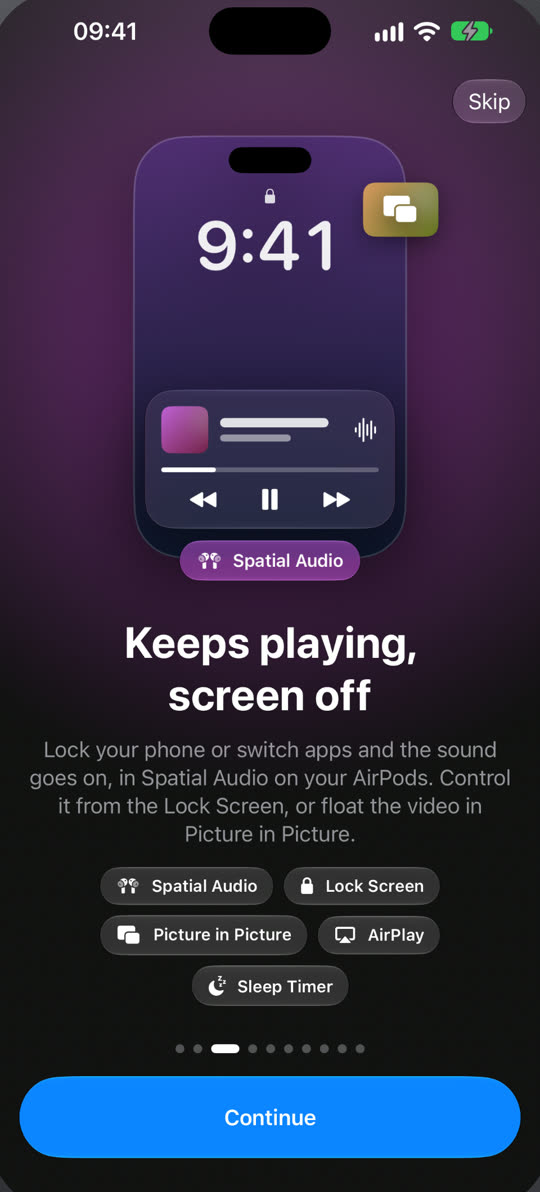
Open the video in AdBlockTube, press play and lock your iPhone. The sound keeps going, and the Lock Screen shows play, pause and skip.
Steps
- Install AdBlockTube from the App Store. It is free and needs iOS 26 or later.
- Open YouTube from Home, or tap a YouTube link in Messages, WhatsApp or Mail once the Safari extension is on.
- Play a video, then press the side button or swipe up to go home. Playback continues.
- Control it from the Lock Screen, Control Center or your AirPods. On AirPods the sound is in Spatial Audio.
- To stop at a set time, open the player’s menu and pick a sleep timer. It counts down on the Lock Screen and in the Dynamic Island.
Paused it from the Lock Screen and came back later? AdBlockTube sends one silent notification. Tap it and playback resumes where you left off.
Why it stops in other apps
In the YouTube app, background play is part of YouTube Premium. In Safari, iOS usually pauses web video when the screen locks, and pressing play on the Lock Screen afterwards often does nothing because the page has been suspended.
AdBlockTube hands the stream to the iOS media player, the same one Apple Music and Podcasts use, so iOS treats it like any other audio app. YouTube Music songs play the same way.
| Safari | YouTube app, free | AdBlockTube | |
|---|---|---|---|
| Plays with the screen locked | Unreliable | No | Yes |
| Lock Screen controls | Sometimes | No | Yes |
| Picture in Picture | Yes | Premium | Yes |
| Video ads | Yes | Yes | Blocked |
| Price | Free | Free | Free |
If playback stops anyway
- Make sure the app was not closed from the app switcher. iOS stops all playback for apps swiped away there.
- Check Settings → YouTube → Video Player. If the iOS player fails twice in a row, AdBlockTube offers to switch back to YouTube’s player.
- Still stuck? Write to us from the support page with the video link.